Policies
Overview
Identity and Access Management policies manage the resources and actions used by identities. Policies contain statements that specify permissions.
You need permission for the iam:policies action to interact with policies.
Any user that’s part of the admins team or the Administrator policy will have this permission.
Otherwise, you can create IAM custom policies to assign this permission.
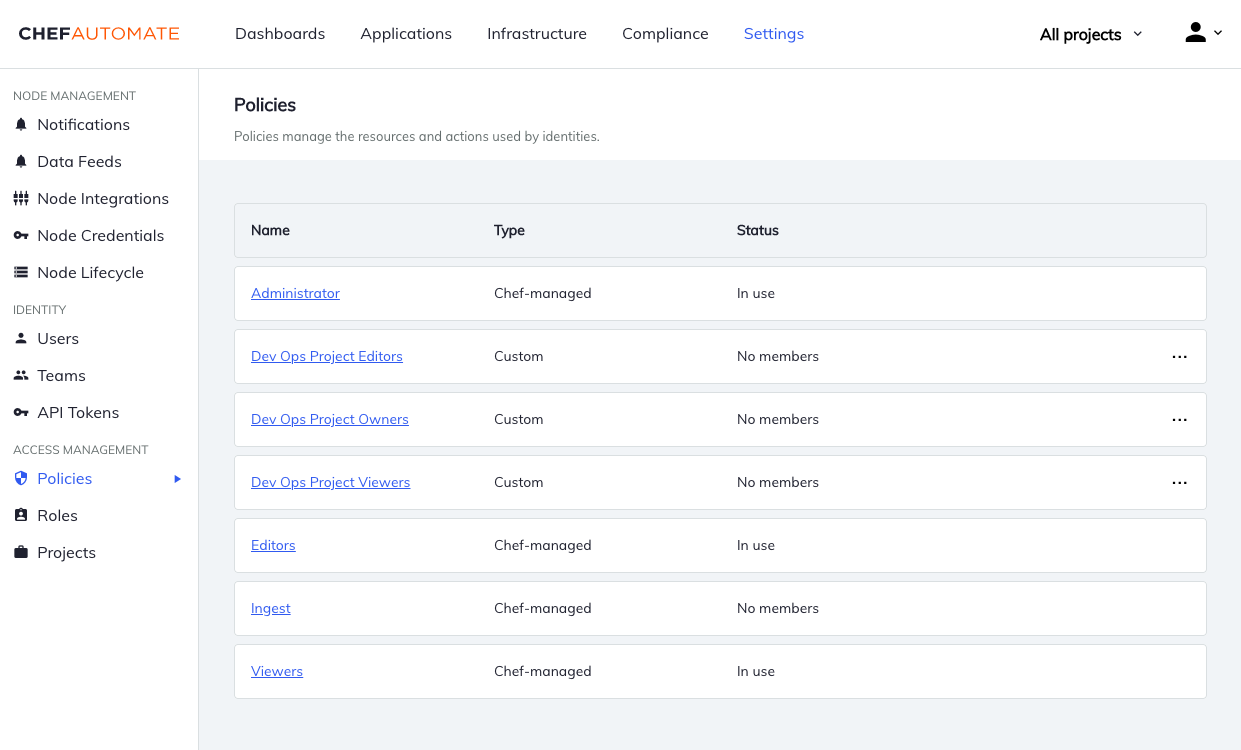
Chef-Managed Policies
Chef provides Chef-managed policies, and they’re integral to the operation of Chef Automate. You can’t change the policy statements in Chef-managed policies.
Custom Policies
Custom policies are policies that you create for your own needs. You can add, edit, and delete policy statements in your custom policies. Chef Automate ships with two custom policies, Compliance Viewers and Compliance Editors, which you can edit like other custom policies.
Managing Policies
Creating Policies
You can create Custom policies using the Policies API.
Deleting Policies
Navigate to Policies in the Settings tab. Then open the menu at the end of the table row and select Delete Policy.
Policy Membership
You can change the policy membership for both Chef-Managed and Custom policies. The exception is that you can’t remove the admins team from the Administrator policy.
Adding Members to Policies
To add members to a policy, navigate to Policies in the Settings tab and locate the policy. Navigate to the policy’s detail page and use the Add Members button. Select local users or teams from the list. You can also use the Add Member Expression button to add API Tokens, and SAML or LDAP users or groups.
Removing Members from Policies
To remove members from a policy, navigate to Policies in the Settings tab and locate the policy. Navigate to the policy’s detail page and select the Members tab. Then locate the member you want to remove and use the menu at the end of the table row to remove the user.
Changing Policy Details
For custom policies, use the Policies API to change the policy name, statements, and projects.